Twitch chat text to speech: how to set it up in 5 minutes
Updated November 12, 2026 · 6 min read
Chat text to speech (chat TTS) reads your viewers' messages out loud on stream. Not in a flat robot voice, but in character voices: Shrek, Kratos, GLaDOS, announcers and meme heroes. A viewer types in chat, and a second later hears themselves on your stream.
This guide shows how to turn on Twitch chat TTS with Chat2Speech: what you need, how to add the widget to OBS, how to pick voices, how to keep chat from turning into spam, and how to earn money from it.
This is a 5-minute setup: no bot to install, no code, just one link in OBS. The steps below walk through the whole setup, from signing in to choosing how viewers get a voice.
Why streamers use chat TTS
Most viewers watch silently. TTS gives them a reason to type: hearing your own name and joke in a favorite character's voice is far more fun than seeing a line of text. A livelier chat keeps people watching longer, and an active channel is easier for new viewers to discover.
It also means you never miss a message. While you are focused on the game, TTS reads questions and jokes out loud and you can answer right away.
more messages and more engagement in chat;
funny moments for clips and highlights;
you hear chat without looking away from the game;
extra income: viewers buy voice subscriptions on your channel.
What you need
Just a Twitch account and OBS Studio, or any streaming app that can add a Browser source (Streamlabs Desktop, vMix and others). You don't add a bot to your chat or download anything: the widget is a single link that reads your channel's chat by itself.
Every day you get 7 free minutes of audio, roughly 100 average messages. That is enough to try it and for a small chat, and no card is required.
Step 1. Sign in with Twitch
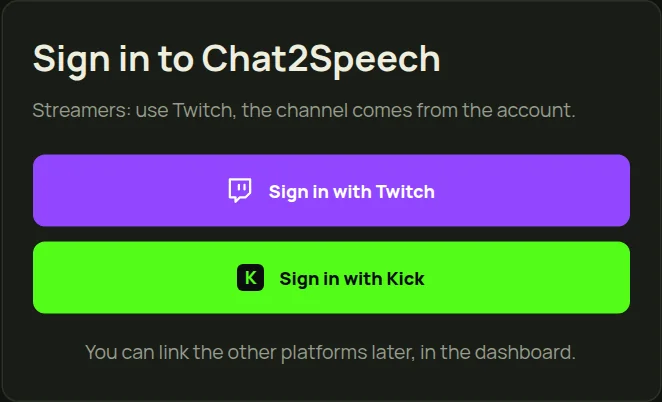
Open chat2speech.com, click «Start for free» and then «Sign in with Twitch». That is how the service knows which channel's chat to read. Twitch will ask you to let Chat2Speech see Channel Points redemptions: this makes voices for points work without typing text. Chat2Speech cannot post in chat or change anything on your channel.
Step 2. Pick the voices
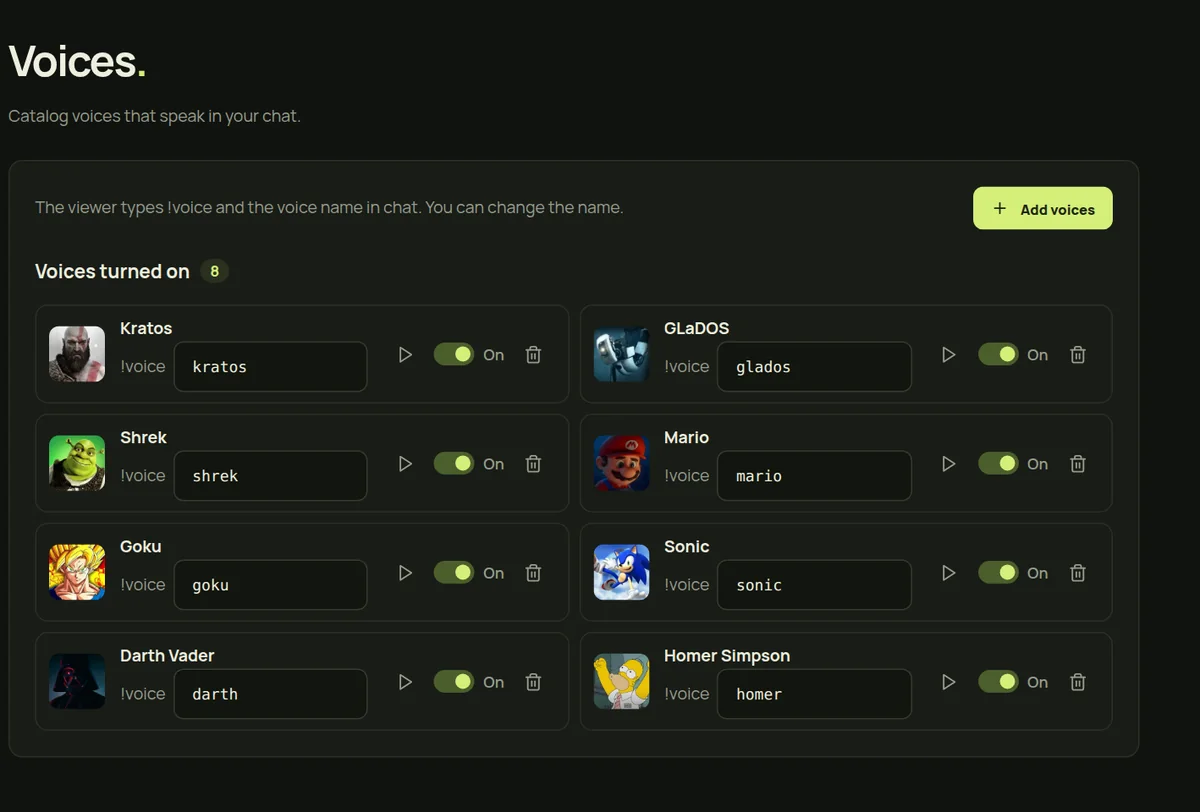
Open «Voices» and click «Add voices», then turn on the characters your chat will speak with. There are more than 250: game, anime and movie characters, announcers and meme voices. You can listen to each one before turning it on.
Don't enable everything at once. Five to ten recognizable voices work better: viewers learn them quickly and start picking favorites.
Step 3. Add the widget to OBS
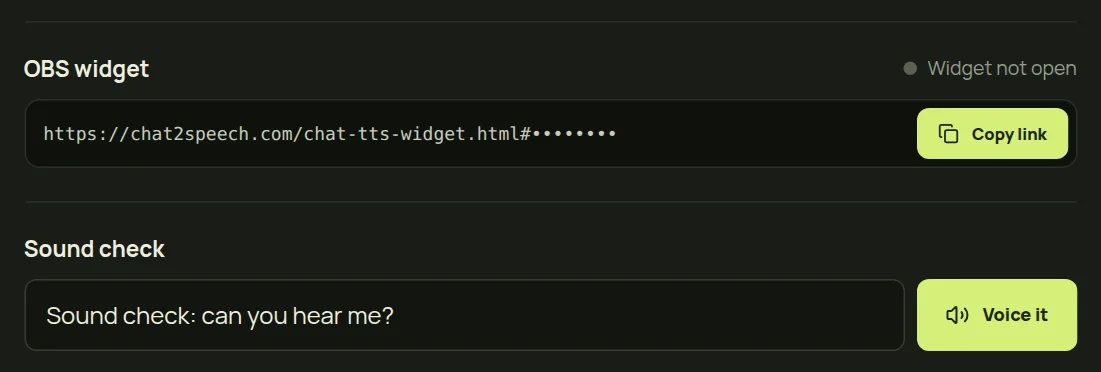
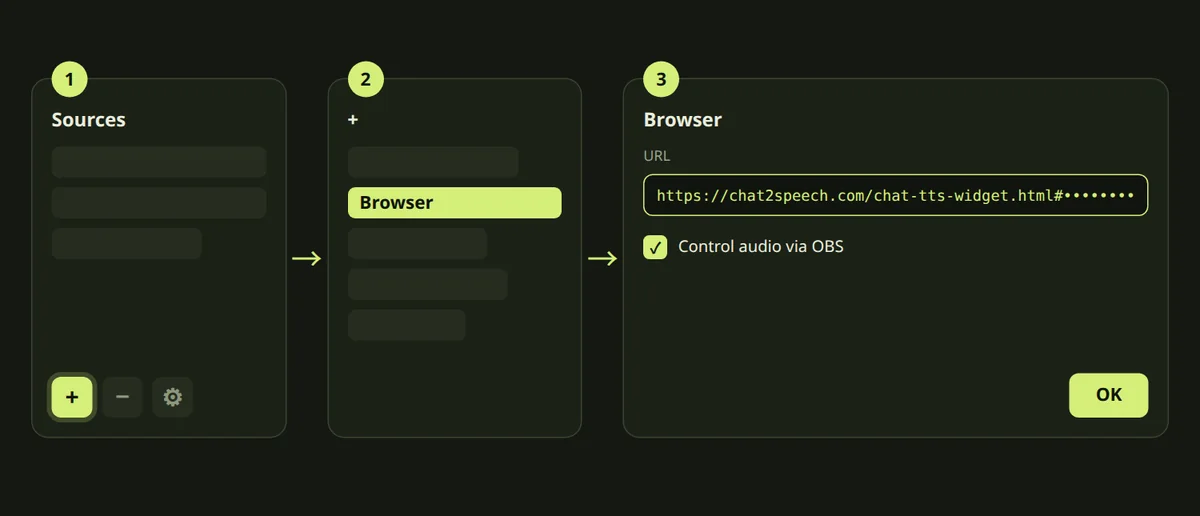
On the «Dashboard» page, find the «OBS widget» block and click «Copy link». In OBS, open the scene, click «+» under Sources, choose «Browser», paste the link into the URL field and click OK. The default size is fine: the widget shows a caption with the viewer's name and voice, and you can move it anywhere on the scene.
Test it: in the «Sound check» block click «Voice it» and the phrase plays through the widget. If the audio plays but you can't hear it, enable «Control audio via OBS» in the source properties and check the audio mixer.
the link is private: never show it on stream;
if it leaks, create a new one in settings and the old link stops working;
volume can be set both in Chat2Speech settings and in the OBS mixer.
Step 4. Choose how viewers get a voice
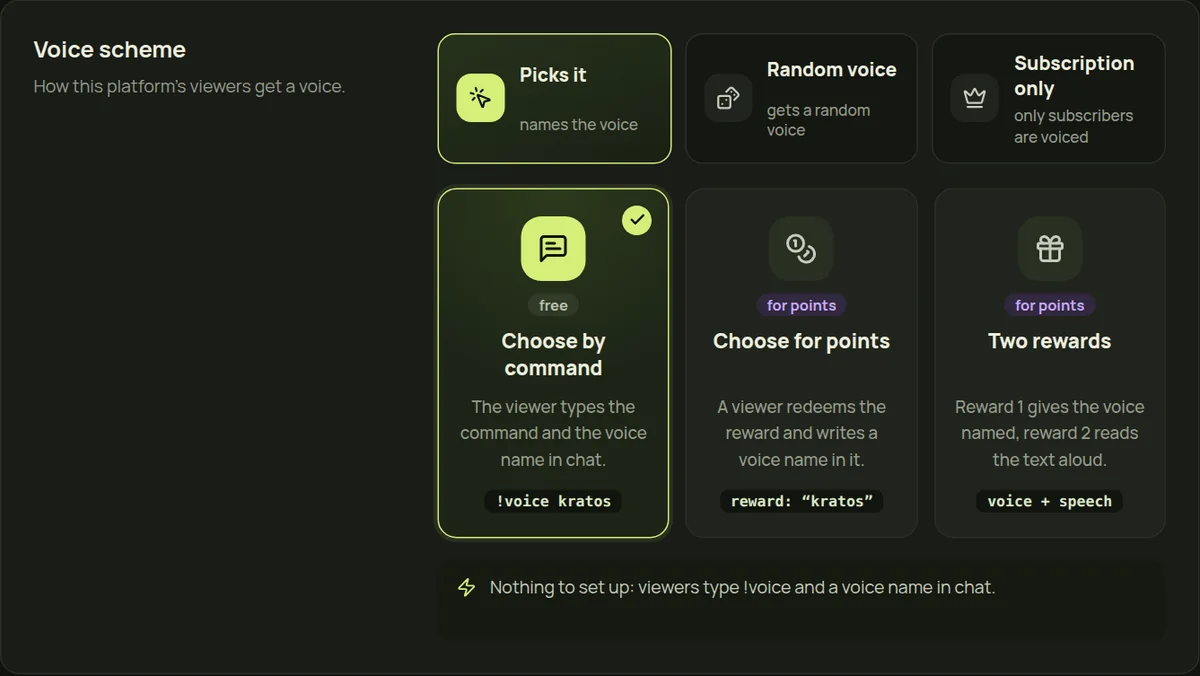
There are several schemes, and you can switch any time. Viewers can pick a voice themselves with a chat command, get a random voice (roulette), redeem a voice with Twitch Channel Points, or speak only after buying a voice subscription.
The Channel Points scheme is great for engagement: viewers collect points while they watch and spend them to be heard. For it, create a Channel Points reward on Twitch (one that asks for text if viewers name the voice), add the widget to OBS and redeem the reward yourself: its ID shows up on the «Twitch» page of the panel menu, under the reward field. Click it and save the settings.
Step 5. Set up filters and moderation
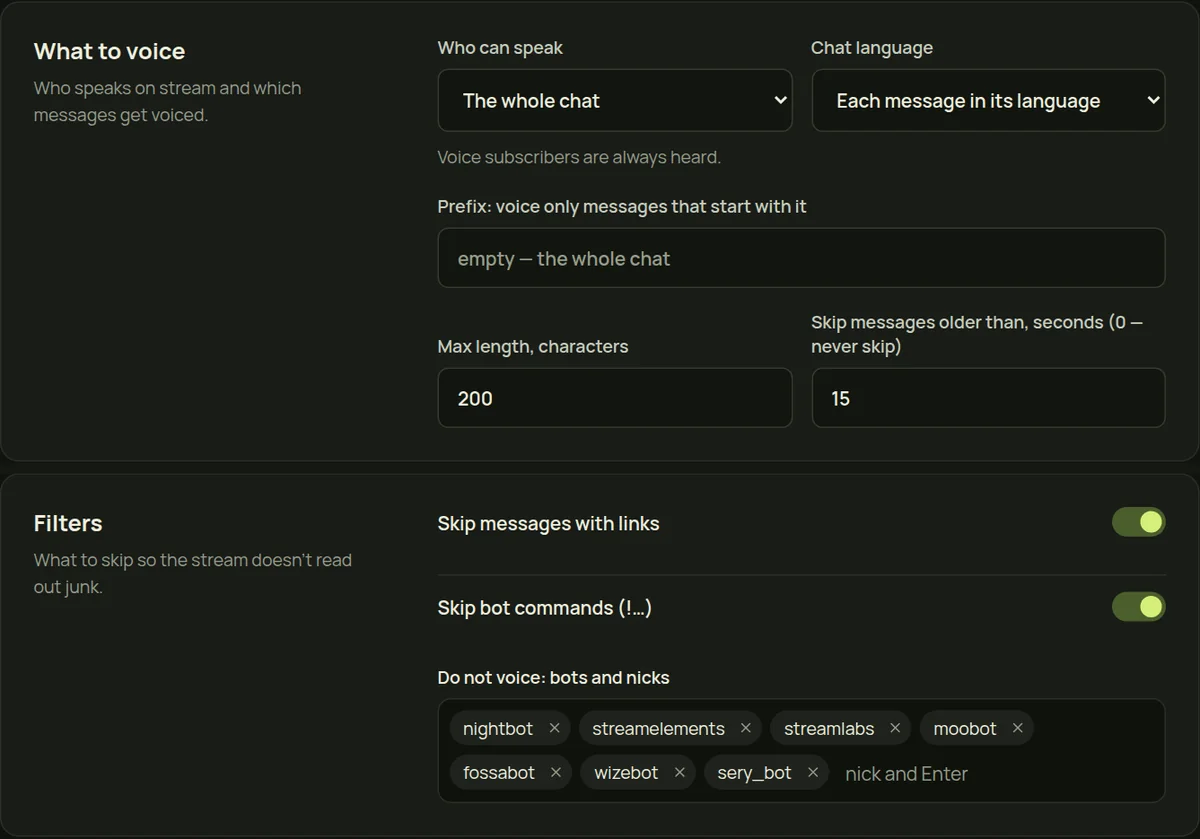
TTS without filters quickly becomes spam. In settings, choose who can speak: everyone, only subs, VIPs and mods, or only VIPs and mods. Skip bot commands (messages starting with «!») and links, and limit message length.
Moderators control TTS right from Twitch chat:
!tts skip — skip the current message;
!tts clear — clear the queue;
!tts off and !tts on — turn TTS off and on;
!tts mute @name and !tts unmute @name — mute a viewer and give their voice back.
Step 6. Add the remote to OBS
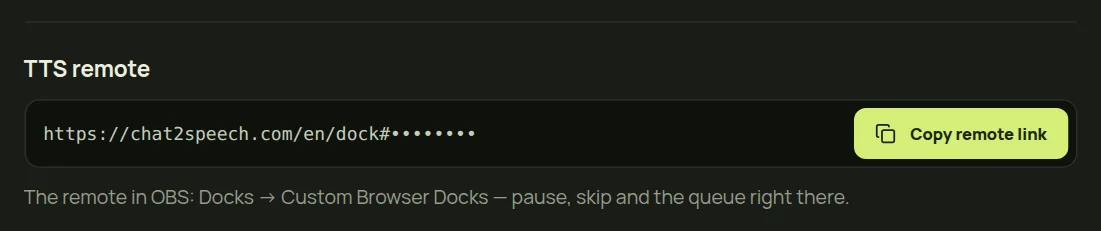
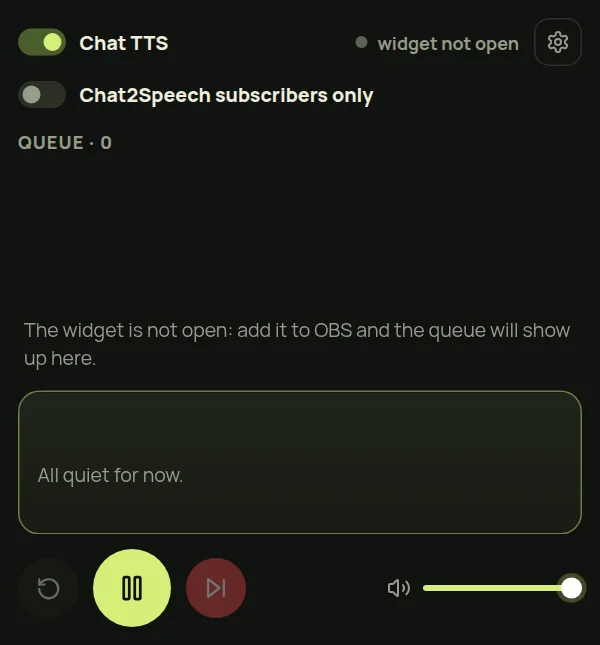
On the «Dashboard» page, find the «TTS remote» block and click «Copy remote link». In OBS, open Docks → Custom Browser Docks, paste the link and give the dock a name. The remote sits next to your chat and mixer: pause, skip a phrase, the queue and the volume, without switching windows mid-stream.
If something does not work, click «Support» at the bottom of the panel menu and describe what happened: the answer arrives in the same place.
Emotions in TTS
Premium voices can laugh, whisper and shout. A viewer writes the emotion before the words, for example (laughing) or (whispering), and the voice delivers the line with that tone. These are the moments that end up in clips most often.
How to earn money with chat TTS
Viewers can buy a voice subscription on your channel. You set the price, and half of every subscription goes to your balance. The subscription includes a premium voice, and subscribers are heard even after your plan's daily limit runs out.
Mention the subscription on stream and put the link to your channel's voice page in your panels or a bot command. For more ways to earn, read our guide on how to make money streaming.
Questions
Is Twitch chat TTS free?
Yes, you get 7 free minutes of audio every day, about 100 messages, with no card. For busy chats, plans start at $5 a month, and $20 gets you no limit.
Do I need to add a bot to my chat?
No. The widget reads your channel's chat through a link that OBS opens as a Browser source. Nothing to install.
How fast is a message read out?
About one second on average from the chat message to the audio on stream.
Can I stop TTS for one viewer?
Yes. A moderator types !tts mute @name in chat, and that viewer's messages are no longer read. To undo it: !tts unmute @name.
Does it work with YouTube or Kick?
Yes: Chat2Speech voices Twitch, Kick and YouTube chats. This guide covers Twitch.